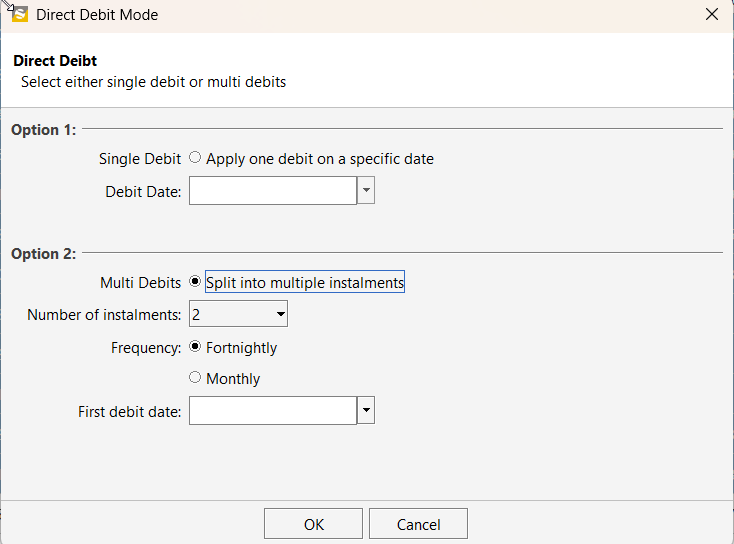
How to Direct Debit Term Invoices from Class Explorer.
Direct debit allows you to automatically collect payments for term invoices directly from within the Class Explorer. This feature helps streamline payment collection and ensures invoices are paid on time.
Before starting the direct debit process, make sure the following requirements are met:
Prerequisites
- All invoices for the term have already been generated.
- Your Worldpay account is connected to your SportlogicApp for online payment processing.
Once these requirements are in place, you can apply direct debit to invoices from the Class Explorer.
Step 1: Open Class Explorer
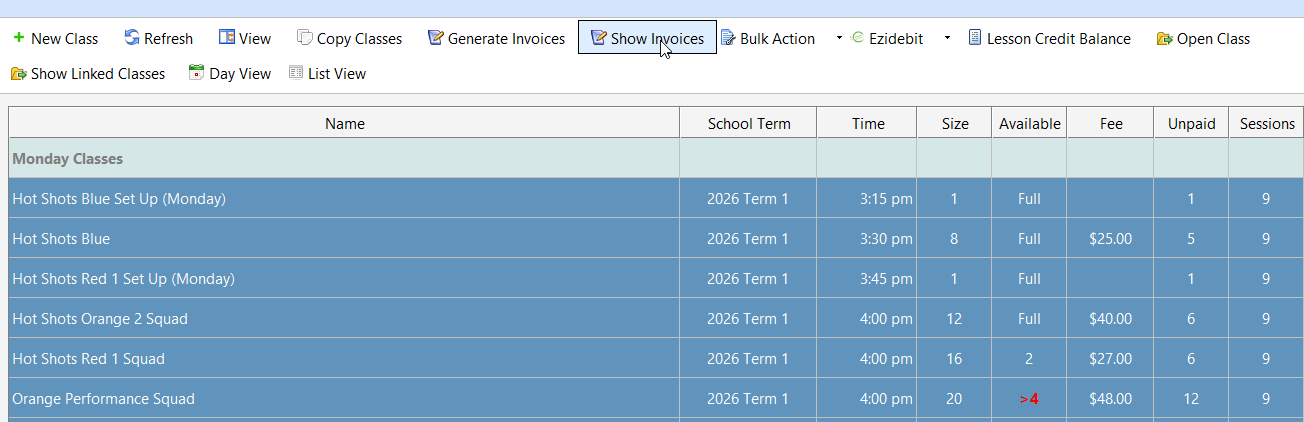
Navigate to Class Explorer and highlight the classes for which you want to collect payments via direct debit.
Step 2: Show Class Invoices
Click the Show Invoices button (as shown in the screenshot below). This will display all invoices associated with the selected classes.
Step 3: Apply Direct Debit
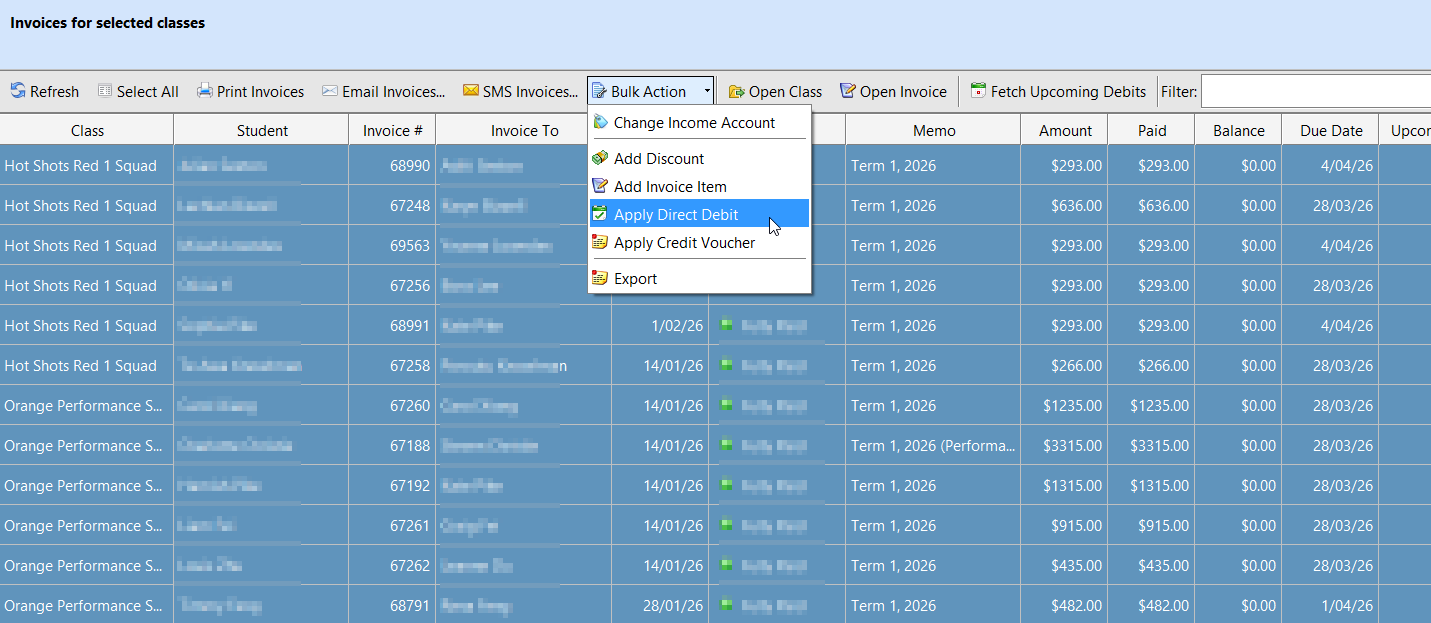
From the Bulk Action menu, select Apply Direct Debit. This option allows you to set up automatic payments for the selected invoices.
Step 4: Choose a Direct Debit Option
You can process the invoices using one of two payment options:
Single Debit
- Collects the full invoice amount in one payment.
- You simply choose the specific debit date, and the entire amount will be processed on that day.
Multi Debits (Installments)
- Splits the invoice amount into multiple payments.
- You can specify:
- Number of installments
- Payment frequency (e.g., fortnightly or monthly)