
How to Sell Credit Vouchers on the Customer Portal
This guide explains how to set up and sell credit vouchers through the customer portal using the Purchase Settings feature.
Step 1: Access Purchase Settings
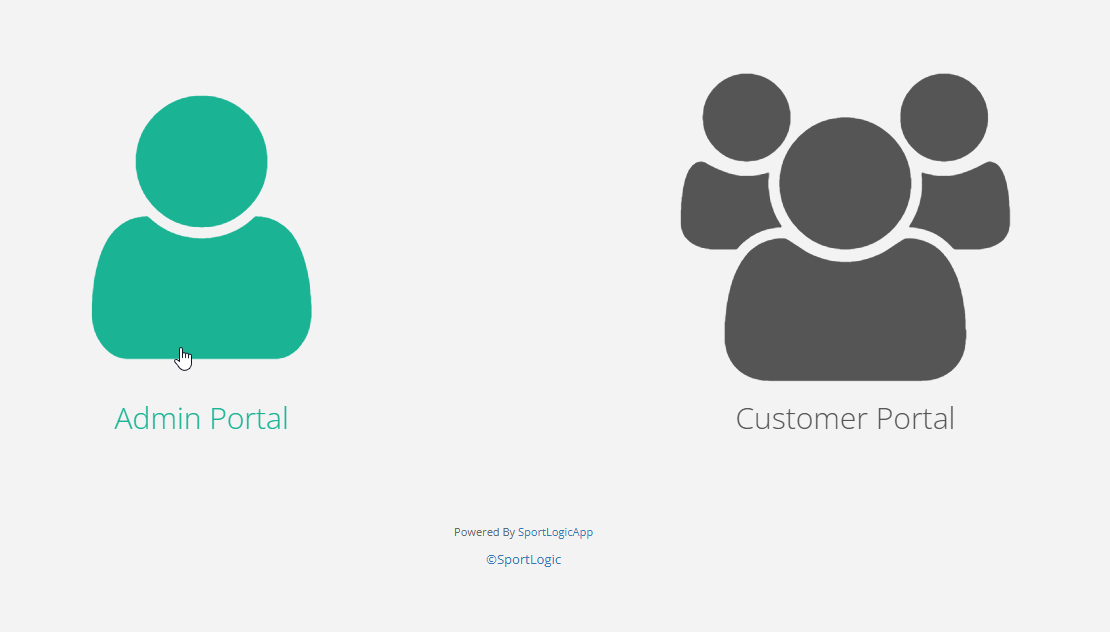
- Log in to your Admin Portal.
- Navigate to Admin → Business & Accounts.
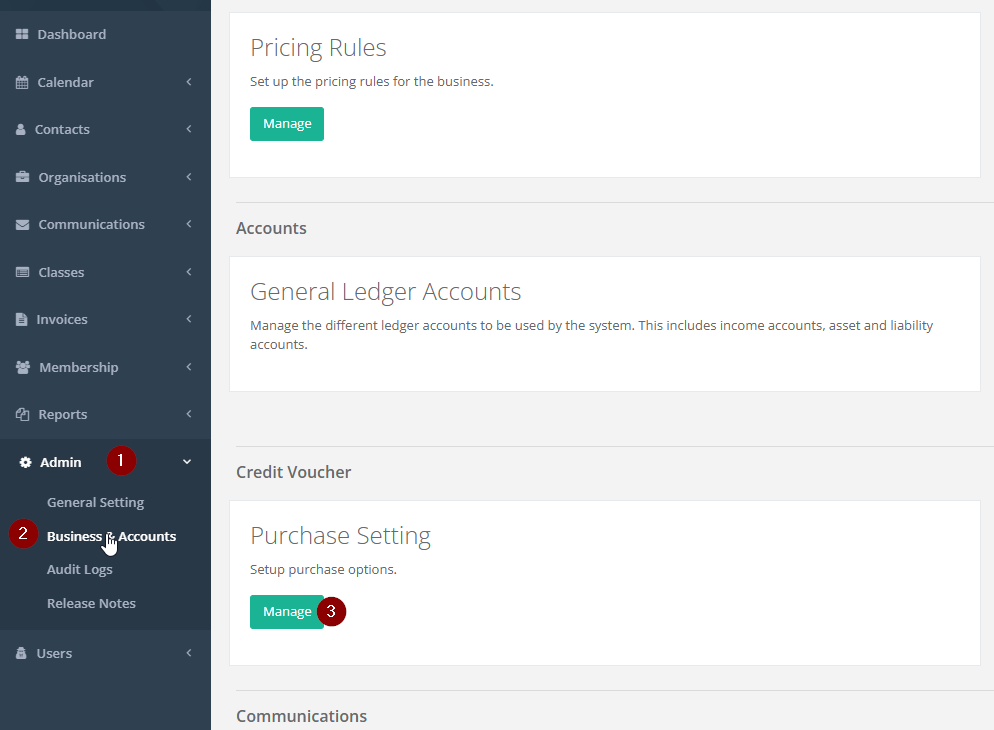
- Click on the Manage button under Purchase Settings.
Step 2: Create a New Purchase Option
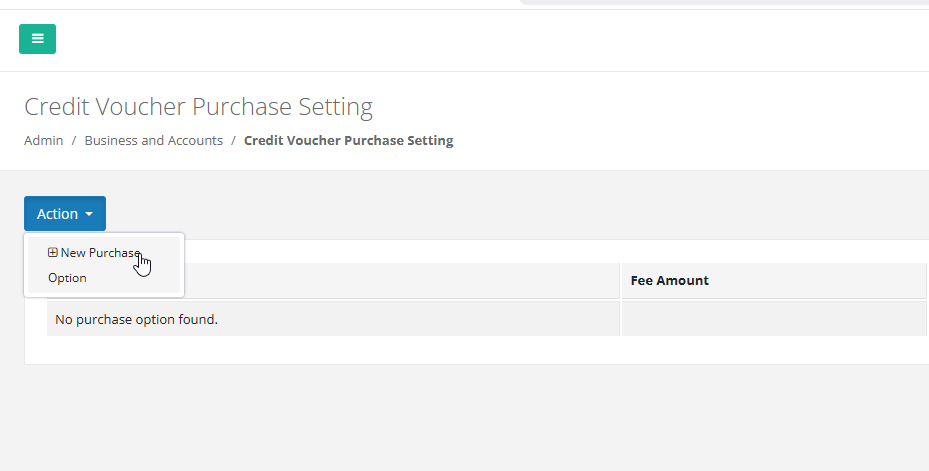
- Click on the Action button.
- Select New Purchase.
Step 3: Configure the Credit Voucher
In this example, we will create a purchase option where customers receive a credit voucher worth 1180 for a $1000 payment.
- Enter the required details in the fields as shown below:
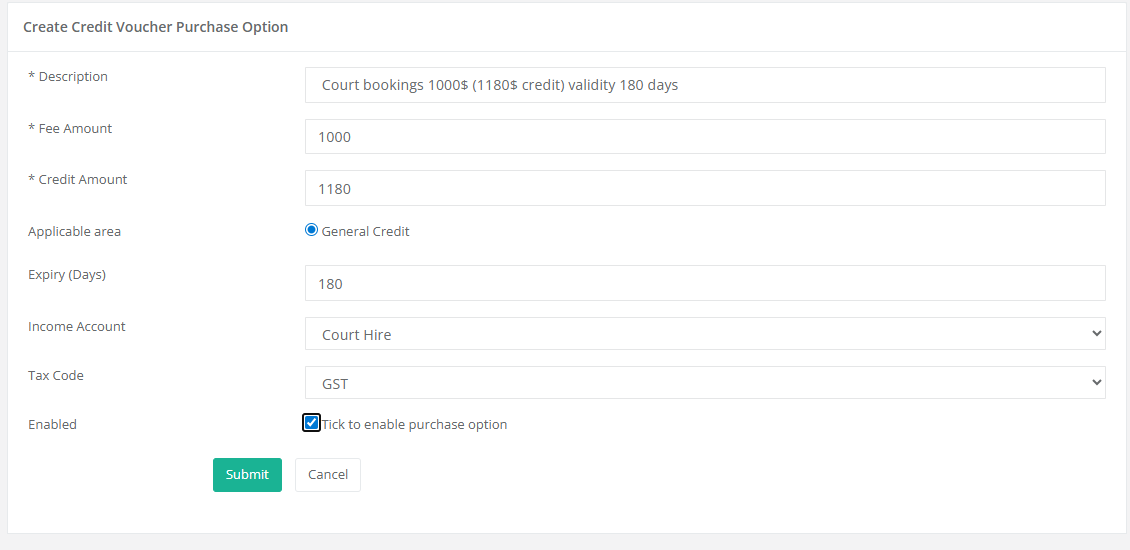
- Click Submit to save the purchase setting.
Step 4: Customer Portal Availability
Once the purchase setting is created:
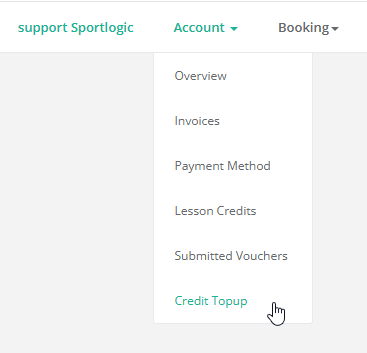
- It will automatically appear on the Customer Portal and customer can access it from Credit Topup under the Account menu.
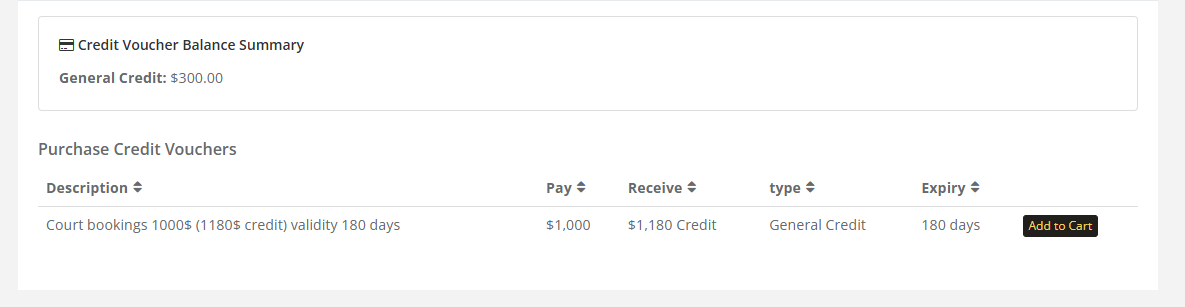
- Customers can now purchase the credit voucher directly online.
Additional Notes
- You can create multiple purchase settings with different amounts and credit values.
- This allows you to offer various promotions or bonus credit options to your customers.
By setting up credit vouchers, you provide customers with a flexible and convenient way to pre-purchase credits, while also encouraging upfront payments and improving cash flow.